
9.2 KiB
Zsh Navigation Tools
https://raw.githubusercontent.com/psprint/zsh-navigation-tools/master/doc/img/n-history2.png
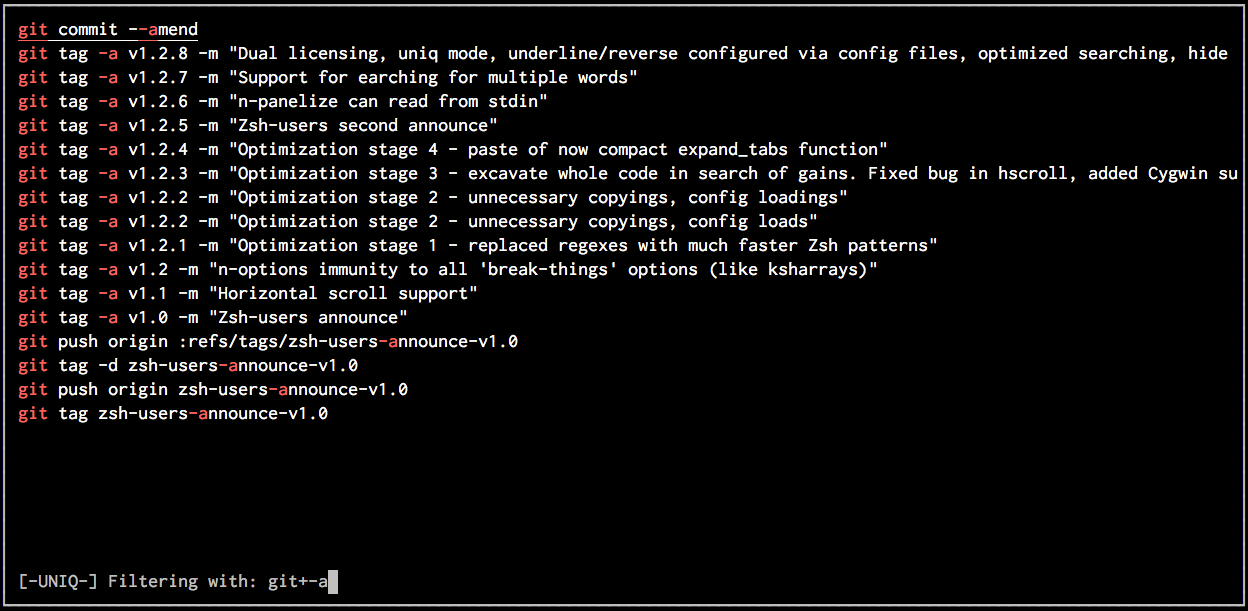
Set of tools like n-history – multi-word history searcher, n-cd – directory bookmark manager, n-kill – htop like kill utility, and more. Based on n-list, a tool generating selectable curses-based list of elements that has access to current Zsh session, i.e. has broad capabilities to work together with it. Feature highlights include incremental multi-word searching, ANSI coloring, unique mode, horizontal scroll, non-selectable elements, grepping and various integrations with Zsh.
History Widget
To have n-history as multi-word incremental searcher bound to Ctrl-R copy znt-* files into the */site-functions dir (unless you use Oh My Zsh) and add:
autoload znt-history-widget
zle -N znt-history-widget
bindkey "^R" znt-history-widget
to .zshrc. This is done automatically when using Oh My Zsh. Two other widgets exist, znt-cd-widget and znt-kill-widget, they can be too assigned to key combinations (no need for autoload when using Oh My Zsh):
zle -N znt-cd-widget
bindkey "^A" znt-cd-widget
zle -N znt-kill-widget
bindkey "^Y" znt-kill-widget
Oh My Zsh stores history into ~/.zsh_history. When you switch to OMZ you could want to copy your previous data (from e.g. ~/.zhistory) into the new location.
News
-
06-10-2016
-
Tmux-integration – Ctrl-b-h in Tmux to open n-history in new window. Then select history entry, it will be copied to the original Tmux window. Use this to execute local commands on remote hosts. All that is needed is this line added to ~/.tmux.conf:
bind h run-shell -b "$ZNT_REPO_DIR/znt-tmux.zsh"
-
-
16-05-2016
- n-kill has completion. It proposes words from what's in
ps -A. Giving n-kill arguments means grepping – it will start only with matchingpsentries.
- n-kill has completion. It proposes words from what's in
-
15-05-2016
- Fixed problem where zsh-syntax-highlighting could render n-history slow (for long history entries).
-
14-05-2016
-
Configuration can be set from zshrc. Example:
znt_list_instant_select=1 znt_list_border=0 znt_list_bold=1 znt_list_colorpair="green/black" znt_functions_keywords=( "zplg" "zgen" "match" ) znt_cd_active_text="underline" znt_env_nlist_coloring_color=$'\x1b[00;33m' znt_cd_hotlist=( "~/.config/znt" "/usr/share/zsh/site-functions" "/usr/share/zsh" "/usr/local/share/zsh/site-functions" "/usr/local/share/zsh" "/usr/local/bin" )
-
-
10-05-2016
- Search query rotation – use Ctrl-A to rotate entered words right.
Words
1 2 3become3 1 2.
- Search query rotation – use Ctrl-A to rotate entered words right.
Words
-
09-05-2016
- New feature: n-help tool, available also from n-history via H key. It displays help screen with various information on ZNT.
-
08-05-2016
- Approximate matching – pressing f or Ctrl-F will enter FIX mode, in which 1 or 2 errors are allowed in what is searched. This utilizes original Zsh approximate matching features and is intended to be used after entering search query, when a typo is discovered.
-
06-05-2016
-
Private history can be edited. Use e key or Ctrl-E for that when in n-history. Your $EDITOR will start. This is a way to have handy set of bookmarks prepared in private history's file.
-
Border can be disabled. Use following snippet in ~/.config/znt/n-list.conf or any other tool-targetted config file:
Should draw the border?
local border=0
-
-
30-04-2016
- New feature: color themes. Use Ctrl-T and Ctrl-G to browse predefined themes. They are listed in ~/.config/znt/n-list.conf. Use the file to permanently set a color scheme. Also, I sent a patch to Zsh developers and starting from Zsh > 5.2 (not yet released) supported will be 256 colors. The file ~/.config/znt/n-list.conf already has set of 256-color themes prepared :)
-
29-04-2016
- New feature: private history – n-history tracks selected history entries, exposes them via new view (activated with F1)
-
28-04-2016
- New features:
- New n-history view (activated with F1): Most Frequent History Words
- Predefined search keywords – use F2 to quickly search for chosen keywords (video: https://youtu.be/DN9QqssAYB8)
- Configuration option for doing instant selection in search mode
- New features:
Introduction
The tools are:
- n-aliases - browses aliases, relegates editing to vared
- n-cd - browses dirstack and bookmarked directories, allows to enter selected directory
- n-functions - browses functions, relegates editing to zed or vared
- n-history - browses history, allows to edit and run commands from it
- n-kill - browses processes list, allows to send signal to selected process
- n-env - browses environment, relegates editing to vared
- n-options - browses options, allows to toggle their state
- n-panelize - loads output of given command into the list for browsing
All tools support horizontal scroll with <,>, {,}, h,l or left and right cursors. Other keys are:
- [,] - jump directory bookmarks in n-cd and typical signals in n-kill
- Ctrl-d, Ctrl-u - half page up or down
- Ctrl-p, Ctrl-n - previous and next (also done with vim's j,k)
- Ctrl-l - redraw of whole display
- g, G - beginning and end of the list
- Ctrl-o, o - enter uniq mode (no duplicate lines)
- / - start incremental search
- Enter - finish incremental search, retaining filter
- Esc - exit incremental search, clearing filter
- Ctrl-w (in incremental search) - delete whole word
- Ctrl-k (in incremental search) - delete whole line
Configuration
ZNT has configuration files located in ~/.config/znt. The files are:
n-aliases.conf
n-cd.conf
n-env.conf
n-functions.conf
n-history.conf
n-kill.conf
n-list.conf
n-options.conf
n-panelize.conf
n-list.conf contains main configuration variables:
# Should the list (text, borders) be drawn in bold
local bold=0

# Main color pair (foreground/background)
local colorpair="white/black"

# Should draw the border?
local border=1

# Combinations of colors to try out with Ctrl-T and Ctrl-G
# The last number is the bold option, 0 or 1
local -a themes
themes=( "white/black/1" "green/black/0" "green/black/1" "white/blue/0" "white/blue/1"
         "magenta/black/0" "magenta/black/1" )
Read remaining configuration files to see what's in them. Nevertheless, configuration
can be also set from zshrc. There are 5 standard zshrc configuration variables:
znt_history_active_text - underline or reverse - how should be active element highlighted
znt_history_nlist_coloring_pattern - pattern that can be used to colorize elements
znt_history_nlist_coloring_color - color with which to colorize
znt_history_nlist_coloring_match_multiple - should multiple matches be colorized (0 or 1)
znt_history_keywords (array) - search keywords activated with `Ctrl-X`
Above variables will work for n-history tool. For other tools, change _history_ to
e.g. _cd_, for the n-cd tool. The same works for all 8 tools.
Common configuration of the tools uses variables with _list_ in them:
znt_list_bold - should draw text in bold (0 or 1)
znt_list_colorpair - main pair of colors to be used, e.g "green/black"
znt_list_border - should draw borders around windows (0 or 1)
znt_list_themes (array) - list of themes to try out with Ctrl-T, e.g. ( "white/black/1" "green/black/0" )
znt_list_instant_select - should pressing enter in search mode leave tool (0 or 1)
Programming
The function n-list is used as follows:
n-list {element1} [element2] ... [elementN]
This is all that is needed to be done to have the features like ANSI coloring, incremental multi-word search, unique mode, horizontal scroll, non-selectable elements (grepping is done outside n-list, see the tools for how it can be done). To set up non-selectable entries add their indices into array NLIST_NONSELECTABLE_ELEMENTS:
typeset -a NLIST_NONSELECTABLE_ELEMENTS
NLIST_NONSELECTABLE_ELEMENTS=( 1 )
Result is stored as $reply[REPLY] ($ isn't needed before REPLY because of arithmetic context inside []). The returned array might be different from input arguments as n-list can process them via incremental search or uniq mode. $REPLY is the index in that possibly processed array. If $REPLY equals -1 it means that no selection have been made (user quitted via q key).
To set up entries that can be jumped to with [,] keys add their indices to NLIST_HOP_INDEXES array:
typeset -a NLIST_HOP_INDEXES
NLIST_HOP_INDEXES=( 1 10 )
n-list can automatically colorize entries according to a Zsh pattern. Following example will colorize all numbers with blue:
local NLIST_COLORING_PATTERN="[0-9]##"
local NLIST_COLORING_COLOR=$'\x1b[00;34m'
local NLIST_COLORING_END_COLOR=$'\x1b[0m'
local NLIST_COLORING_MATCH_MULTIPLE=1
n-list "This is a number 123" "This line too has a number: 456"
Blue is the default color, it doesn't have to be set. See zshexpn man page for more information on Zsh patterns. Briefly, comparing to regular expressions, (#s) is ^, (#e) is $, # is *, ## is +. Alternative will work when in parenthesis, i.e. (a|b). BTW by using this method you can colorize output of the tools, via their config files (check out e.g. n-cd.conf, it uses this).
Performance
ZNT are fastest with Zsh before 5.0.6 and starting from 5.2
vim:filetype=conf